Home / Learn / Adaptive Audio for Fortnite
Adaptive Audio for Fortnite
Adaptive audio in Fortnite allows your music and sound effects to respond to in-game events. On PC, Tyger enables this by linking your audio to specific gameplay actions.
How adaptive audio works in Fortnite with Tyger
Tyger connects your music and sound effects to in-game events inside Fortnite. These events act as triggers that control how audio behaves while you play.
Instead of playing music continuously like a standard player, Tyger allows your audio to change based on what is happening in your game.
This includes:
- changing how music plays during different gameplay moments
- triggering sound effects tied to specific actions
- adjusting the overall audio experience in real time
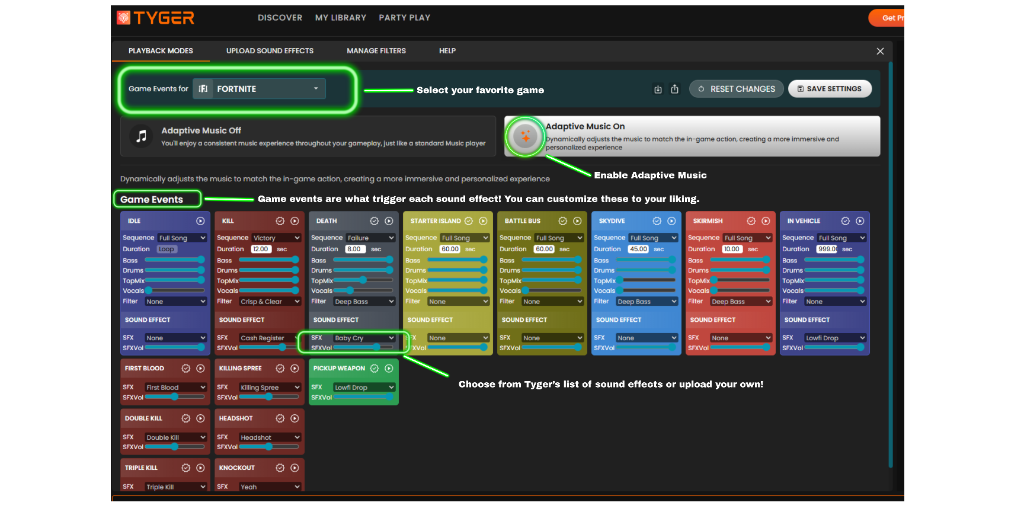
Game events screen in Tyger — each event can be customized with music settings and sound effects. Click to enlarge.
How to enable adaptive audio
To use adaptive audio in Fortnite:
- Download Tyger: overwolf.com/app/tyger
- Create a free account and open the app
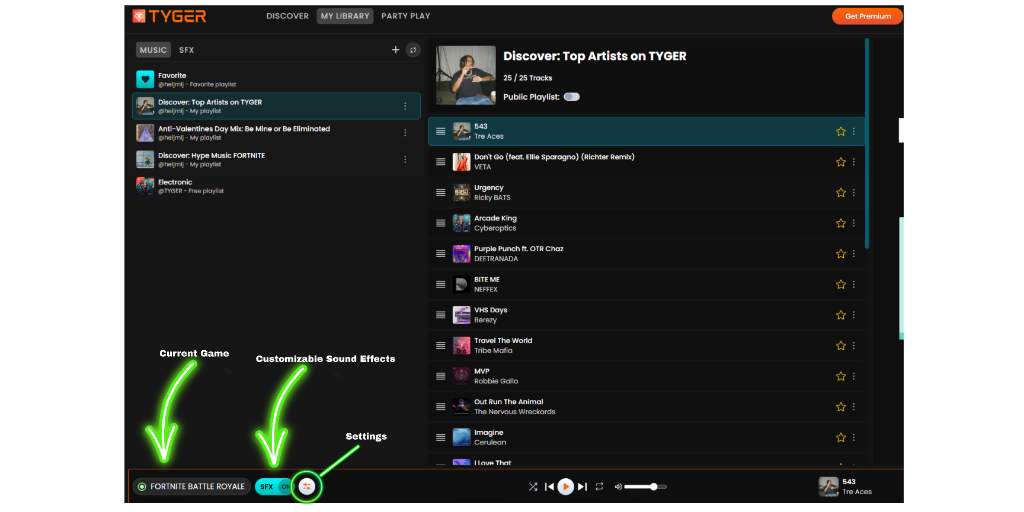
- In the bottom left corner, click the orange settings toggle
- This opens the sound effects and adaptive music screen
- Select Fortnite from the game list
- Make sure Adaptive Music is turned on
Once enabled, your audio will respond to gameplay events automatically.
The Tyger app with Fortnite Battle Royale selected. The orange settings icon in the bottom left opens the adaptive audio screen. Click to enlarge.
Understanding game events
Game events are the in-game actions that trigger audio behavior in Tyger.
When a game event occurs, Tyger can:
- adjust music playback
- trigger a sound effect
Examples of game events include:
- kills
- deaths
- different gameplay phases
- other in-game actions
Each event can be customized within Tyger.
Customizing sound effects
Tyger allows you to assign sound effects to game events.
You can:
- choose from Tyger's curated sound effects
- upload your own custom sounds
- control how and when they play
This allows you to personalize how your audio reacts during gameplay.
Adaptive music vs standard playback
Tyger supports two playback modes:
Adaptive Music On
Music adjusts based on gameplay events
Adaptive Music Off
Music plays continuously like a standard player
Supported usage
Adaptive audio for Fortnite is available for PC users using Tyger.
FAQ
Do I need to control the music manually while playing?
No. Once adaptive audio is enabled, Tyger automatically responds to gameplay events.
Can I upload my own sound effects?
Yes. Tyger allows you to upload custom sounds or use built-in options.
Where do I enable adaptive audio?
In the settings panel accessed from the bottom left of the Tyger app.
Get started
Download Tyger and enable adaptive audio for Fortnite.
DOWNLOAD FREEInstalls in 30 seconds · PC only · No game files modified